Scheduler
Repo: rmf2_scheduler
Not part of the demo
The Scheduler is not included in the ros_industrial_demo stack yet.
It will be added in a future release.
Design
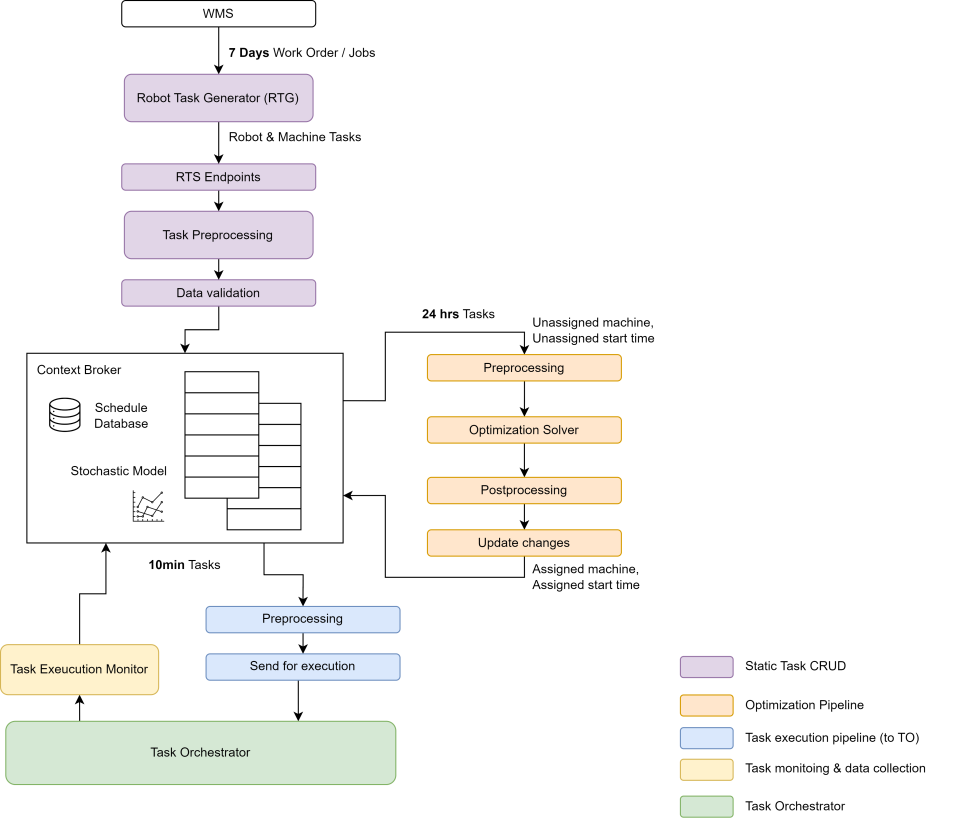
| Components | Description |
|---|---|
| Robot Task Generator (RTG) | Generate the robot and machine tasks from work orders / jobs |
| RTS Endpoints | Static CRUD endpoints (REST API) for schedule updates. This allows schedule changes 7 days from now. |
| Task Preprocessing | Add in a rough estimate for the task duration based on previous experience (from stochastic model). Adjust the start time based on task duration and task dependencies. |
| Data Validation | Validate the tasks input after the preprocessing before updating the database. This component checks for invalid dependencies, invalid schema, id etc. |
| Optimization Pre-processing | This component takes in all the tasks 24 hrs from now, update their start time based on dependencies and check for any needs for optimization. If optimization is required, this component will create the optimization problem (variables, constraints and objective function) based on the 24 hrs tasks' information. This component can also request for additional information needed for the problem formulation, such as robot states, stochastic model route timing, etc. |
| Optimization Solver | This is the scheduler optimization solver. It will solve for an optimal solution. If no feasible solution can be found, the solver can provide a best-case alternative. |
| Optimization Post-processing | Validate the solution from the solver and convert them to schedule updates. |
| Schedule Changes Update | Update the schedule in the database with new assignment and new start time. |
| Execution Pre-processing | This component takes in all the tasks 10 min from now and convert them to the format for the task orchestrator to execute. |
| Send for execution | Send the tasks to the Task Orchestrator for execution. |
| Task Execution Monitor | Upon delay, completion, cancellation or failure during task execution, this component updates the schedule database. Based on these information, the optimization pipeline may be triggered to adjust the schedule. The Stochastic Model also uses this module for operational data collection. |
Task Data Structure
| Field | Type | Required | Description |
|---|---|---|---|
id | string | required | Task ID, in IOCS this is stored as urn:<id> |
type | string | required | Task type, this is used to distinguish execution methods. This can also be used for conflict checking and optimization. |
description | string | optional | Additional description of the task. |
start_time | ISOTime | required | Start time of the task. This is updated to the actual start time once the task execution has started. |
end_time | ISOTime | optional | End time of the task. This is updated to the actual end time once the task execution has completed. |
process_id | string | optional | The process this task belongs to. |
series_id | string | optional | The reoccurring series the task belongs to. This is unused in IHI use cases. |
status | string | optional | The status of the task. |
resource_id | string | optional | The Resource ID assigned to this task. |
deadline | ISOTime | optional | The deadline of the task. |
planned_start_time | ISOTime | optional | Planned start time of the task. |
planned_end_time | ISOTime | optional | Planned end time of the task. |
estimated_duration | float | optional | The estimated duration of the task. |
actual_start_time | ISOTime | optional | Actual start time of the task. |
actual_end_time | ISOTime | optional | Actual end time of the task. |
task_details | JSON | optional | Additional use case specific data. |
Process Data Structure
| Field | Type | Required | Description |
|---|---|---|---|
id | string | required | Task ID, in IOCS this is stored as urn:<id> |
graph | JSON | required | Task relationship, only Task IDs are stored here. |
A Directed Acyclic Graph (DAG) of task relationships is recorded as JSON, with only the Task IDs stored in the graph field.
Onboard a new task type
The RMF2 Scheduler allows the user to define how a task is converted into an element in the BehaviorTree.
Below is an example of how this can be done using the Scheduler Python API.
First define a custom TaskExecutor.
from rmf2_scheduler import TaskExecutor, ExecutorData
from rmf2_scheduler.data import Task

class MyAwesomeTaskExecutor(TaskExecutor):
    def __init__(self):
        super().__init__()

    def build(self, task: Task):
        executor_data = ExecutorData();
        coorindates = task.task_details["coordinates"]
        asset_name = task.resource_id
        out = (
            "SubTree " +
            f"ID=\"ReplaceMAPF\" task_id=\"{task.id}\" " +
            "bt_id=\"{bt_id}\" task_status=\"{task_status}\" connection=\"{connection}\" " +
            f"coordinates=\"{coorindates}\" " +
            f"asset_name=\"{asset_name}\""
        )
        executor_data.set_data_as_string(out)
        return True, None, executor_data

    def start(self, id: str, executor_data: ExecutorData):  # Currently not used
        return True, "Undefined"
Then in app.py (under src/rmf2_scheduler/demos/rmf2_scheduler_server), add in the following line.
task_executors = {
    "ihi/go_to_amr": GoToAMRTaskExecutor(),
    "ihi/wait_amr": WaitAMRTaskExecutor(),
    "ihi/warehouse_task": WareHouseTaskExecutor(),
    "rmf2/mapf": MAPFTaskExecutor(),
    "ihi/dummy": DummyTaskExecutor(),
    "my_new_task_type": MyAwesomeTaskExecutor(),
}
REST API Endpoints
Please make sure Installation - IOCS Robot Task Generator & Scheduler is completed, and the RMF2 Scheduler Server is running at http://localhost:8079.
The endpoints swagger can be accessed at http://localhost:8079/docs.
Basic Tutorials
Create a task using REST Endpoints
TIP
Please make sure a RMF2 Scheduler Server is running. For more, check out the Quick Start in the rmf2_scheduler docs.
Let's create a Task in the scheduler using the POST /schedule/edit API and the TASK_ADD ScheduleAction.
This tutorial requires some utility command line tools. Run the following command to install them.
sudo apt install coreutils curl uuid-runtime jqStep 1 - Dry run
Let's do a dry-run of the REST API query. This checks if the query is valid. No changes are made to the schedule stored.
Run the following cURL command.
curl --location 'localhost:8000/schedule/edit' \
     --header 'Content-Type: application/json' \
     --data-raw '{
       "type": "TASK_ADD",
       "task": {
         "id": "'$(uuidgen)'",
         "start_time": "'$(date -u -Iseconds)'",
         "type": "rmf2/dummy"
       }
     }'
You should receive a successful response as follows.
{"message":"Dry run successfully."}Step 2 - add task
Let's run the command with dry-run disabled. This command changes the schedule stored. Simply append query parameter dry_run=false to the URL.
localhost:8000/schedule/edit?dry_run=false
The full cURL command is as follows.
curl --location 'localhost:8000/schedule/edit?dry_run=false' \
     --header 'Content-Type: application/json' \
     --data-raw '{
       "type": "TASK_ADD",
       "task": {
         "id": "'$(uuidgen)'",
         "start_time": "'$(date -u -Iseconds)'",
         "type": "rmf2/dummy"
       }
     }'
Upon success, you should receive the following response.
{"message":"Schedule updated successfully!"}Step 3 - Verification
Let's verify the task we have created.
To retrieve the task we have created, you can use the GET /schedule/ API.
Simply run the following cURL command.
curl -sS localhost:8000/schedule/ | jq .You should receive a response similar to the following.
{
  "tasks": [
    {
      "type": "rmf2/dummy",
      "start_time": "2025-04-21T10:28:10Z",
      "id": "d37b295a-6fbc-431c-a87d-ece7607c9f89",
      "status": ""
    }
  ],
  "processes": []
}
TIP
RMF2 scheduler interprets and stores time in UTC timezone by default. The time output follows the ISO 8601 format.